
Chapter 15 · 15.2
Copying formulas from Excel: English function names and the comma
If you're used to Excel in Dutch, you'll type =SOM, =ALS and =VERT.ZOEKEN. Online, formulas are often written in English, with commas: =SUM(A1,A2). Which form do you use in Euro-Office?
How this works in your WebOké Cloud
In your WebOké Nextcloud, Euro-Office uses the English function names and the comma between the parts of a function by default, exactly as in the English Excel. So you type =SUM(B3:B11), =IF(B5>0,"profit","loss") and =VLOOKUP(A3,Facturen!B2:H13,6,0). A full stop is the decimal separator: 1.21.
Checking or changing the setting
- Click File and select Advanced settings.
- Look under Regional settings at Formula language (1). Here you choose the language you want to use for typing functions.
- Under Region (2), choose how dates, numbers and currency are displayed. Choose English (United Kingdom) for 23/10/2026, a full stop as the decimal separator and the pound sign.
- Leave Use separators based on regional settings ticked and click Apply.
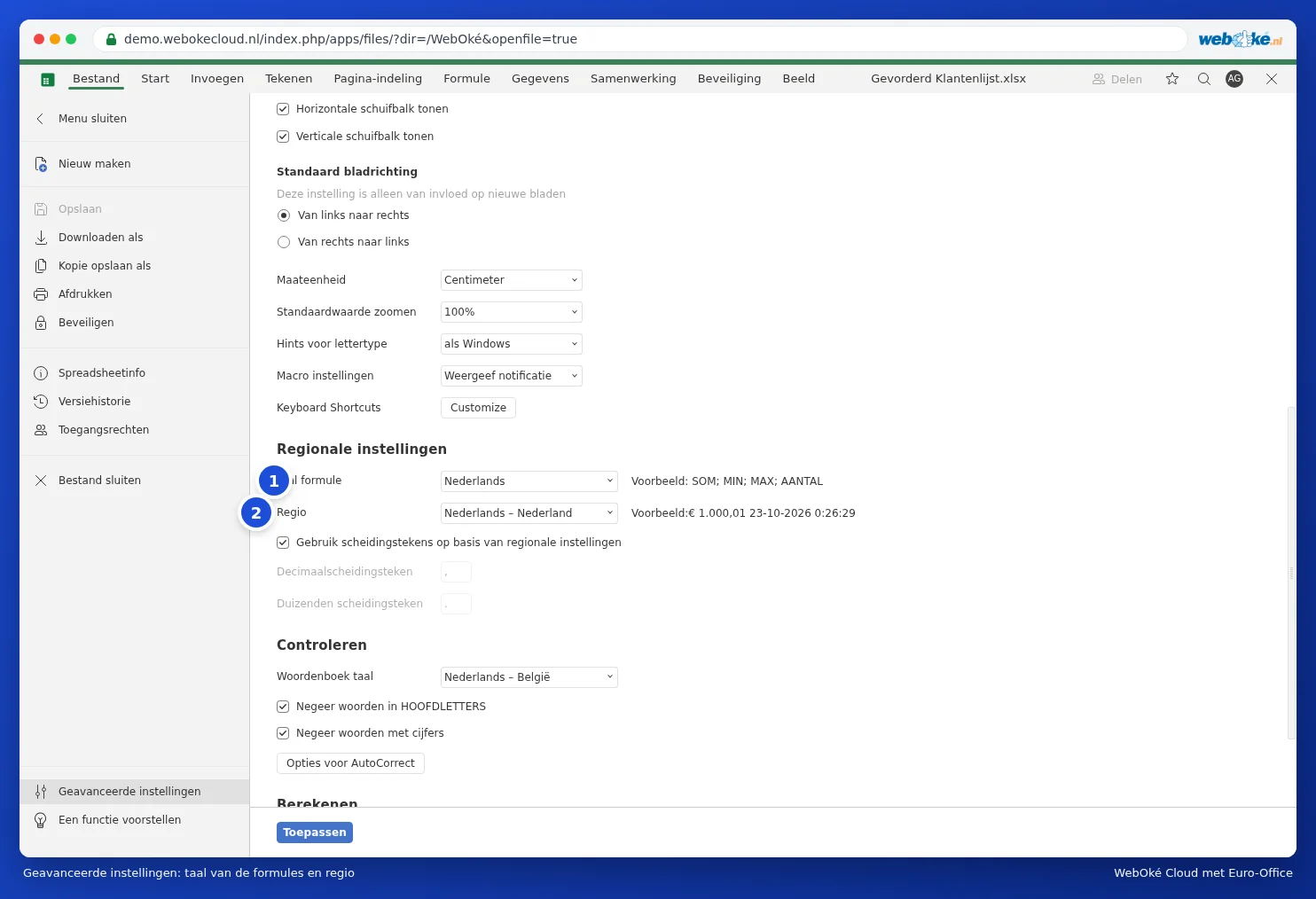
This doesn't change the file itself. A colleague who has Dutch set up simply sees =SOM in the same file, and a Dutch Excel opens it without any problems.
Converting a Dutch formula
Translate the function names and replace the semicolons between the parts with commas. The most commonly used:
| English | Dutch |
|---|---|
| SUM, AVERAGE, COUNT | SOM, GEMIDDELDE, AANTAL |
| IF, AND, OR | ALS, EN, OF |
| VLOOKUP, XLOOKUP, MATCH | VERT.ZOEKEN, X.ZOEKEN, VERGELIJKEN |
| IFERROR, IFNA | ALS.FOUT, ALS.NB |
| SUMIF, SUMIFS, COUNTIF | SOM.ALS, SOMMEN.ALS, AANTAL.ALS |
| TRIM, CLEAN, SUBSTITUTE | SPATIES.WISSEN, WISSEN.CONTROL, SUBSTITUEREN |
| LEFT, RIGHT, MID, LEN | LINKS, RECHTS, DEEL, LENGTE |
| DATE, TODAY, NETWORKDAYS | DATUM, VANDAAG, NETTO.WERKDAGEN |
| TEXTJOIN, UNIQUE, FILTER | TEKST.COMBINEREN, UNIEK, FILTER |
Tip: not sure about a name? Go to the Formula tab and browse through the categories, or type the equals sign and the first few letters: Euro-Office will then show a list of matching functions.
Pitfalls
- #NAME? in the cell: the function name isn't recognised. (Euro-Office always shows error values using the English codes, even if you're working with Dutch function names.) This is usually a Dutch name or a typo.
- Euro-Office always shows logical values in English: TRUE and FALSE, even in the formula bar. Don't type a bare WAAR or ONWAAR in a formula, as that gives #NAME? or an incorrect result. Use TRUE and FALSE, the functions WAAR() and ONWAAR() with brackets, or 1 and 0.
- If a formula uses a custom VBA function from Excel, it won't work. See An Excel file with VBA macros: what now?.