
Chapter 3 · 3.3
Setting up an authenticator app and saving backup codes
An authenticator app generates a new six-digit code on your phone every 30 seconds. You type that code in when logging in, instead of the code from your email. It's faster and it also works if your email is temporarily unavailable. Well-known free apps include Microsoft Authenticator, Google Authenticator, Aegis (Android) and the authenticator built into password managers such as Bitwarden, 1Password or Proton Pass. In Nextcloud, this is called TOTP.
Step 1: enable TOTP
- Install an authenticator app on your phone, if you don't already have one.
- Go to your security settings in your Nextcloud: click your profile picture, choose Settings and click Security on the left.
- Under TOTP (Authenticator app), tick Enable TOTP (1).

Step 2: scan the QR code
- Does your Nextcloud ask for your password first? Enter it to confirm. This happens with every important change to your security settings.
- A QR code (1) appears with the text As a quick procedure, scan this QR code with your TOTP app. Open your authenticator app, choose to add a new account and scan the code.
- Your app now shows a six-digit code for WebOké Nextcloud.
- Below the QR code, your Nextcloud asks for a test code (2): After setting up your app, you need to enter a test code to ensure everything works correctly. Type the code from your app into the field and click Verify. Only then is TOTP actually switched on.
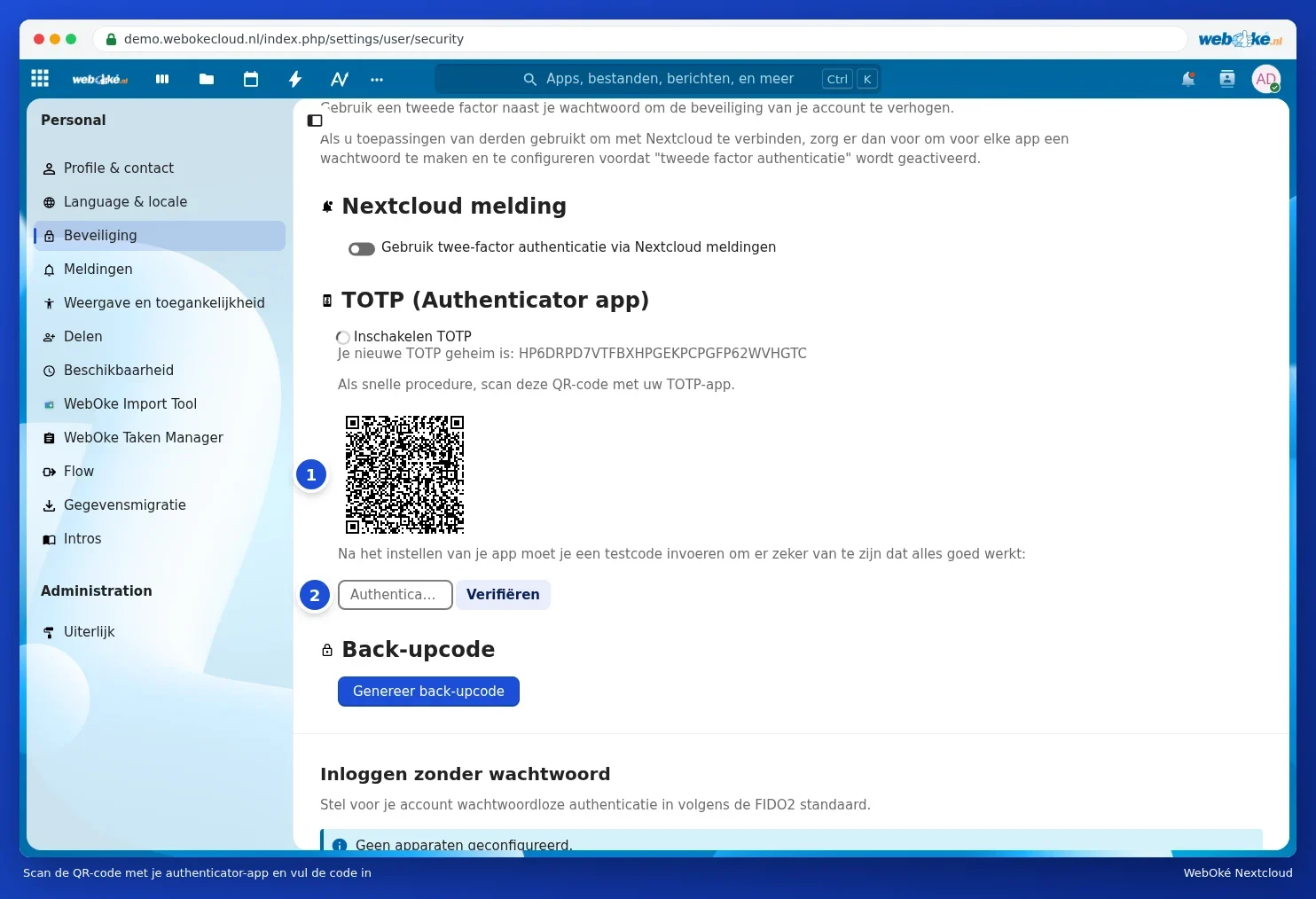
Tip: Can't scan, for example because your Nextcloud is open on the same phone? Above the QR code, there's also a secret key shown as text, after Your new TOTP secret is:. Type or paste that into your app. Password managers such as Bitwarden and 1Password can also pick up the key automatically.
Step 3: create and save backup codes
If you lose your phone, you no longer have access to your authenticator app. That's what backup codes are for: ten codes, each of which works once.
- On the same page, under Backup code, click Generate backup codes (1).
- You'll see ten codes. Save them with Save backup codes or print them with Print backup codes.
- Store them somewhere safe, not on the same phone as your authenticator app. For example, print them and keep them with your important papers, or store them in your password manager.

If you've switched on TOTP but haven't created backup codes yet, your Nextcloud will remind you with a notification by the bell icon: Generate backup codes.
Please note: You only see the backup codes once. If you generate new codes later, the old ones stop working.
Logging in with your authenticator app
If you have TOTP switched on alongside the email code, your Nextcloud will ask, after your password, which second step you want to use. Choose the authenticator app and type in the code your app shows at that moment. If you've lost your phone, choose Use backup code and enter one of your backup codes. Cross off any code you've used like this on your list.
Passwordless Authentication
Below two-factor authentication, you'll also see Passwordless Authentication. There, you can use Add WebAuthn device (1) to link a security key (such as a YubiKey) or a passkey from your computer or phone. After that, you can choose Log in with a device on the login screen. This is an extra option; your password and your other methods keep working as normal.

Getting a new phone
Switching to a different phone? First transfer your accounts in your authenticator app (most apps have a feature for this), or switch TOTP off and then on again and scan the new QR code with your new phone. Do this before you wipe or hand in your old phone.