
Chapter 3 · 3.2
The email login code: how it works and what to do if the email doesn't arrive
Watch it in a short video
Every time you log in via the browser, your WebOké Nextcloud asks for a six-digit code after your password. You receive this code by email. This way, someone who knows your password still can't just log in: they also need access to your mailbox.
How it works
- You enter your username and password and click Login.
- Your Nextcloud immediately sends an email to the email address in your profile. On screen you can see which address, partly hidden with asterisks.
- You enter the code. After six digits it usually continues automatically; otherwise click Verifeer Code.
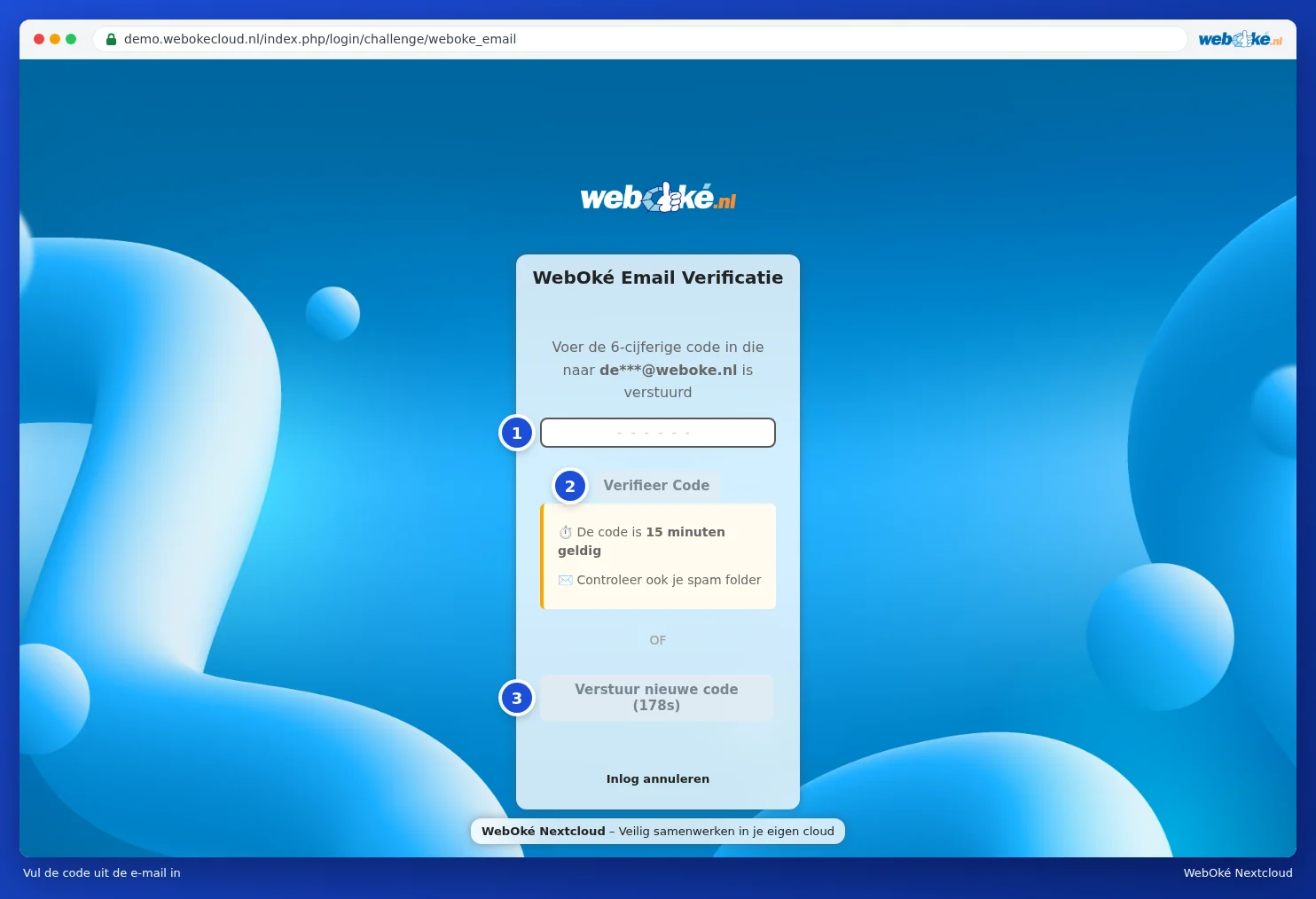
The email
The email comes from WebOké Nextcloud (nextcloud@weboke.nl) with the subject WebOké Two-Factor Authenticatie Code. It contains:
- your six-digit verification code;
- a button Klik hier om direct in te loggen: handy if you're reading the email in the same browser, as you won't need to type anything;
- what to do if it wasn't you.
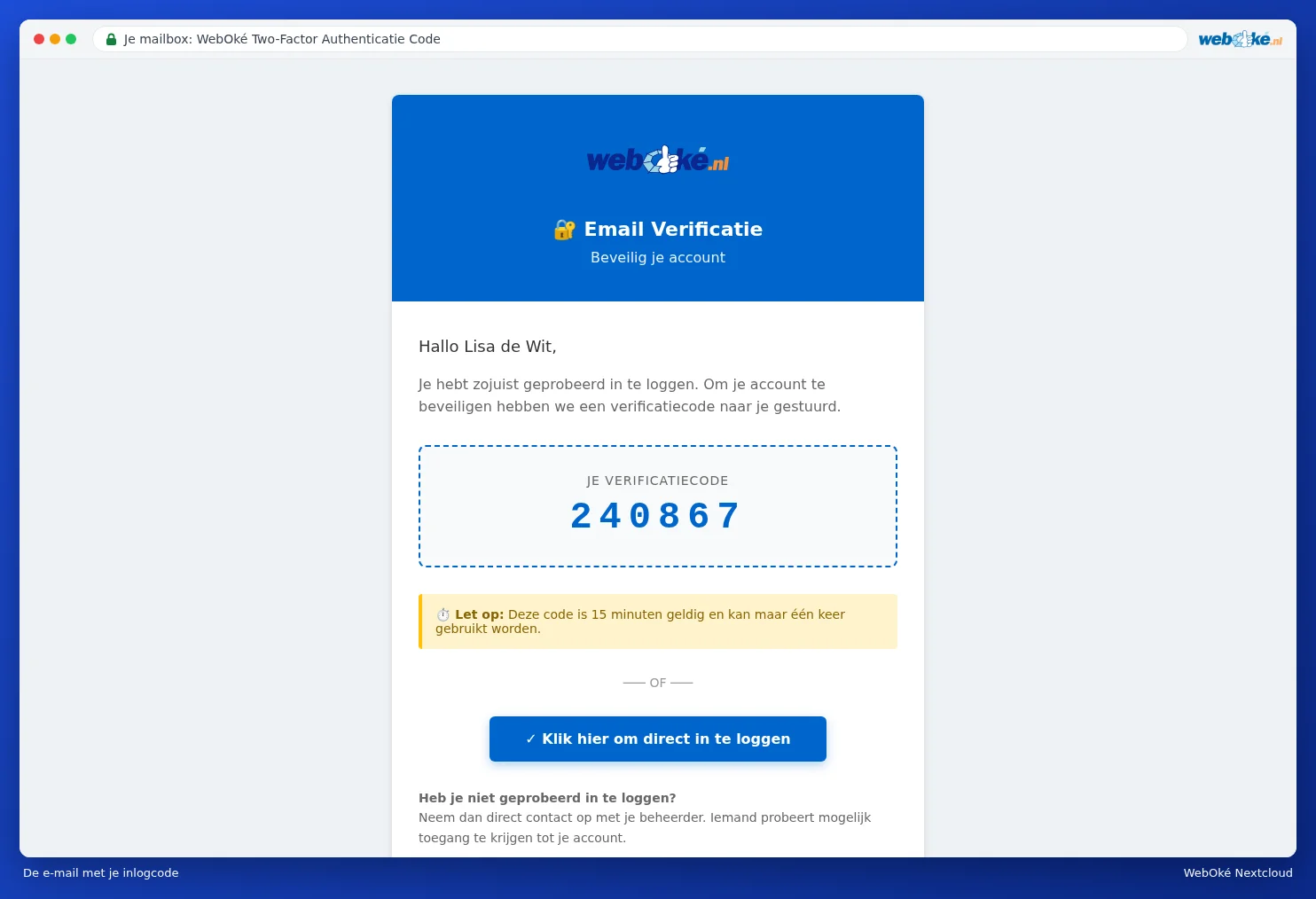
A code is valid for 15 minutes and only works once. If you request a new code, always use the latest email.
Please note: Did you receive a login code while you weren't logging in? Then someone else probably knows your password. Don't use the code and don't give it to anyone. Change your password as soon as possible (Changing or forgetting your password) and check Devices & sessions for any unfamiliar devices (Viewing, revoking, or remotely wiping devices and sessions).
The email doesn't arrive: what now?
- Wait a minute. Sometimes an email takes a little while.
- Check your junk mail or spam folder. If it's there, mark it as not spam. Then future emails will go straight to your inbox.
- Request a new code. The Verstuur nieuwe code button becomes active after three minutes. After that, only use the code from the latest email.
- Check which address the code is sent to. This is shown (partly hidden) on the code screen. If the address is wrong, or you can no longer access that mailbox? Ask the administrator of your Nextcloud package to change your email address. The administrator does this in Mijn WebOké under Gebruikersbeheer, with Edit data. If you're the owner yourself, please contact WebOké.
- Is your mailbox full? A full mailbox won't accept new mail. Clear it out and request a new code.
Tip: Don't want to depend on your email? Then set up an authenticator app as well (Setting up an authenticator app and saving backup codes). That way, when logging in, you can choose whether to use the code from the email or from the app.
Why doesn't an app on my phone ask for a code?
The Nextcloud apps for your computer and phone log in once via your browser, with your password and code. After that, they generate their own key and you won't need to log in again. Other apps, such as your iPhone's calendar or Thunderbird, can't enter a code. These use an app password instead. You can read how this works in App passwords: when and how to use them.