
Chapter 15 · 15.1
Cron Jobs: running tasks automatically
Watch it in a short video
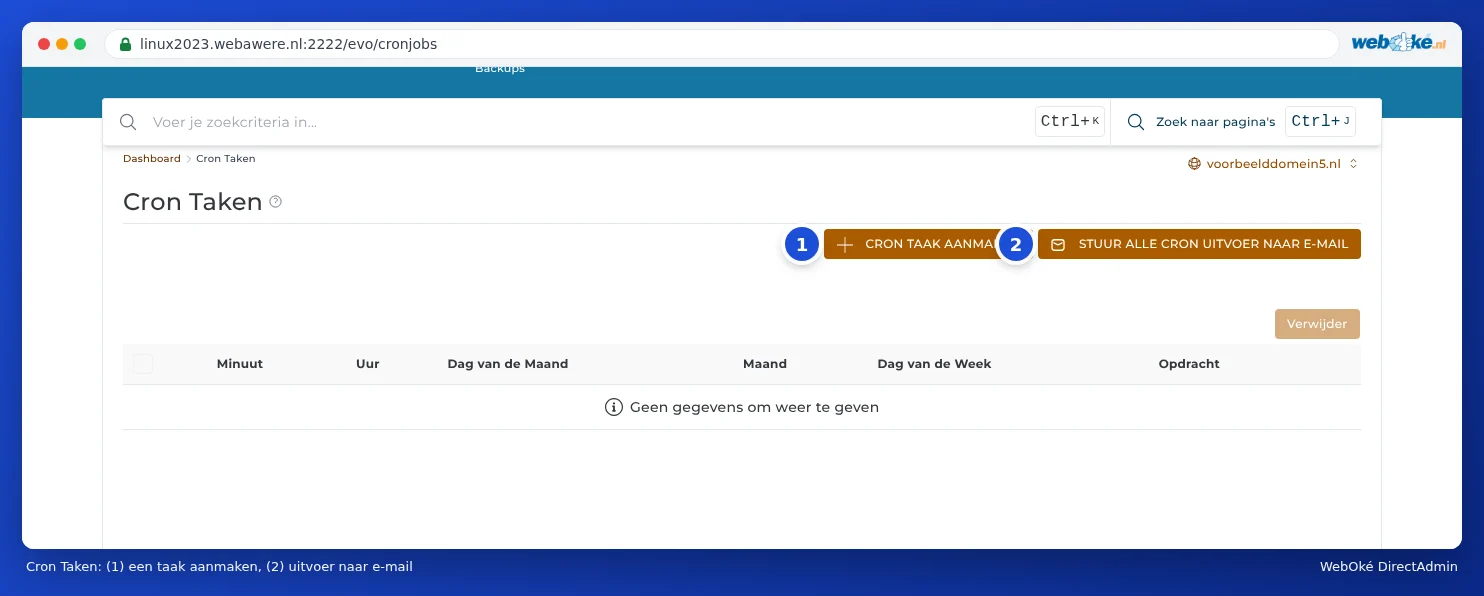
A cron job is a command that the server runs for you at fixed times. For example, a script that cleans up old data every night, a link with your accounting software every hour, or the scheduled tasks of WordPress or Laravel. You set this up under Cron Jobs, under Advanced Features.
Rules at WebOké
You share a server with other websites. That's why there are rules for cron jobs:
- Let a task run at most once every 10 minutes. We ask this of everyone. The server doesn't enforce it, but a task that runs more often slows down the server for you and others. If you have several tasks, don't let them all start at the same time.
- Keep a task short. If a lot needs to happen, spread the work over several rounds.
Creating a task
- In DirectAdmin, under Advanced Features, click Cron Jobs.
- Click CREATE CRON JOB.
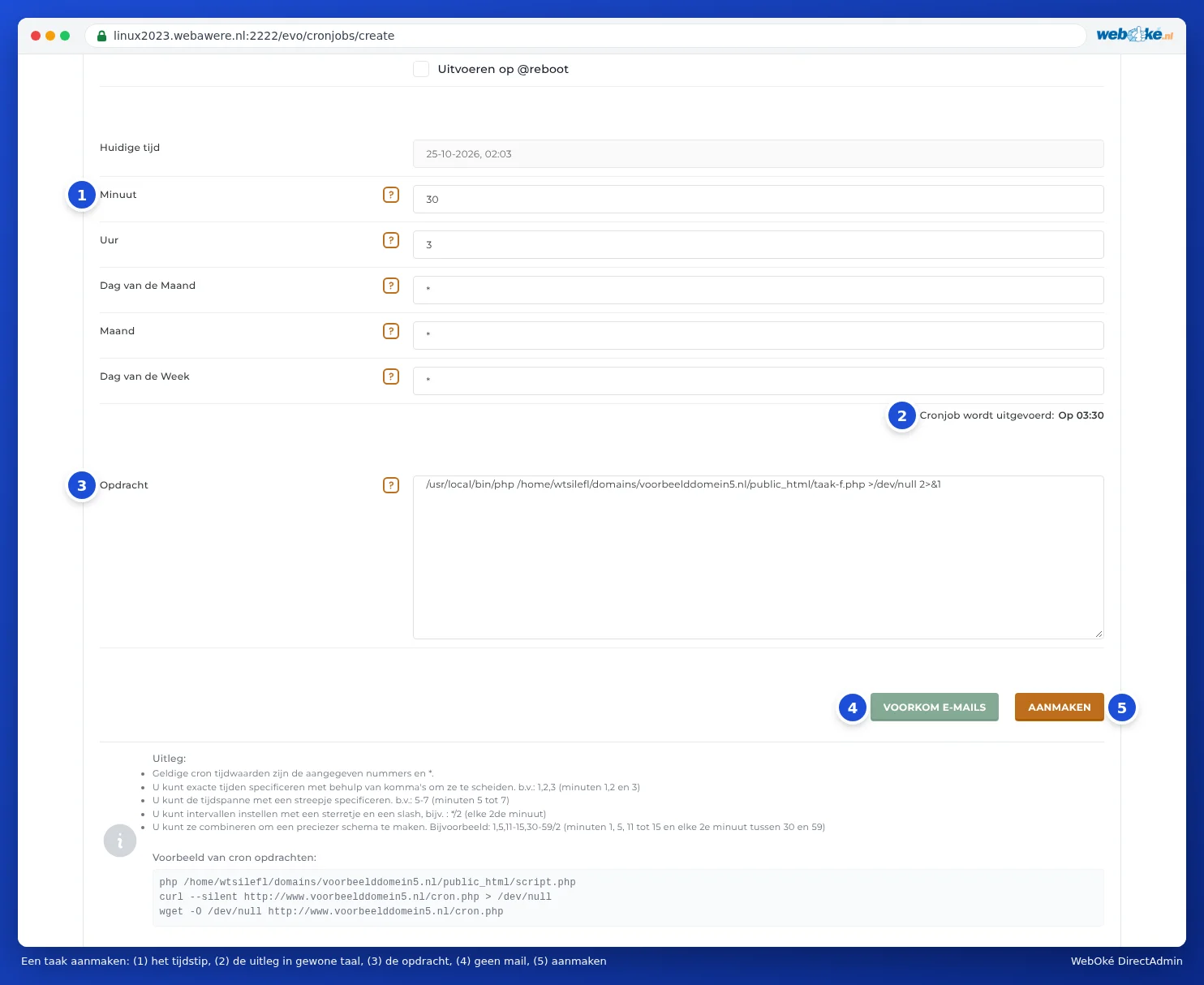
- Fill in Minute, Hour, Day of Month, Month and Day of Week to set when the task should run (1). An asterisk * means "every".
- Below the time fields, you'll see Cron job will run: (2), which explains in plain language when the task runs. Check this.
- Type what needs to happen under Command (3), using full paths (see below).
- Don't want an e-mail every time? Click PREVENT E-MAILS (4).
- Click CREATE (5).
The task then appears in the list. To delete it, tick it (1) and click Delete.

Examples of times
| Minute | Hour | Day of Month | Month | Day of Week | Meaning |
|---|---|---|---|---|---|
| 30 | 3 | * | * | * | Every day at 03:30 |
| */10 | * | * | * | * | Every 10 minutes |
| 0 | * | * | * | * | Every full hour |
| 15 | 8 | * | * | 1-5 | On weekdays at 08:15 (1 is Monday, 0 or 7 is Sunday) |
| 0 | 2 | 1 | * | * | On the first day of every month at 02:00 |
You can separate values with commas (1,15,30), specify a range with a hyphen (5-7), and an interval with */ (*/2 means every second). Preferably choose a quiet, random time, such as 03:17 instead of exactly midnight.
The command: full paths
A cron job doesn't know which folder to start in. Always use full paths. Your package is located on the server in /home/ followed by your DA username (see Finding your server name and DA user name).
Starting a PHP script:
/usr/local/bin/php /home/username/domains/yourdomain.com/public_html/task.php
This uses the same PHP version as your website, so the version from Select PHP version (see Selecting the PHP version (Select PHP version)).
Calling a web address (for example, if your software provides a cron URL):
curl --silent https://www.yourdomain.com/cron.php > /dev/null
WordPress: By default, WordPress starts its scheduled tasks when a visitor comes to the site. For a busy site or a site with little traffic, it's better to do this with a cron job. In that case, add define('DISABLE_WP_CRON', true); to wp-config.php and create a task that starts /usr/local/bin/php /home/username/domains/yourdomain.com/public_html/wp-cron.php every 15 minutes.
Laravel: /usr/local/bin/php /home/username/domains/yourdomain.com/artisan schedule:run. Note: schedule:run only runs tasks that fall exactly on the cron's moment. If the cron runs every 10 minutes, a task scheduled for 08:05 will never run.
E-mail after every task
If a task produces output (text or an error message), the server can send it by e-mail. This only happens if you've set an address. You have three options:
- E-mail to your own address: click SEND ALL CRON OUTPUT TO E-MAIL, enter an e-mail address and click SAVE. This applies to all your tasks. If you leave the field blank, no e-mail will be sent.
- No e-mail for a single task: click PREVENT E-MAILS when creating the task. This adds >/dev/null 2>&1 after your command, and the output of that task is discarded, even if you've set an address.
- Output in a log file: add >> /home/username/cron-log.txt 2>&1 after your command. You can then see later in File Manager what the task did. Clean up such a file from time to time.

Tip: Set an address while you're testing a new task. That way, you'll see straight away whether it works. Then turn it off or send the output to a log file instead. E-mails from cron jobs count towards your package's sending limit (see Send limits and the 'message limit reached' message).
Frequently asked questions
My task shows "Could not open input file".
The path to the script is incorrect. Check the full path in File Manager: it should start with /home/username/domains/.
My script works in the browser, but not as a cron job.
A script that runs via cron doesn't know which website it's running under: $_SERVER['SERVER_NAME'] and $_SERVER['DOCUMENT_ROOT'] are empty, and relative paths in include work differently. Use full paths in the script, or call the script via curl with the web address.
Can I see when a task has run?
DirectAdmin doesn't keep track of this for you. So have the task write its output to a log file, including the date (for example, date >> /home/username/cron-log.txt as the first command, separated with ;).
What does Run on @reboot do?
In that case, the task only runs when the server restarts, not at fixed times. You'll almost never need this for a website.