
Chapter 12 · 12.3
Opening and using phpMyAdmin
phpMyAdmin is a program in your browser that lets you view and work with your database: viewing tables, searching and editing data, exporting and importing. At WebOké, you open it from DirectAdmin, without having to enter a password.
Opening phpMyAdmin
- In DirectAdmin, click phpMyAdmin under Extra Features. Or click the PHPMYADMIN button at the top of the Databases section.
- phpMyAdmin opens in a new tab. You're automatically logged in and see all your databases on the left.
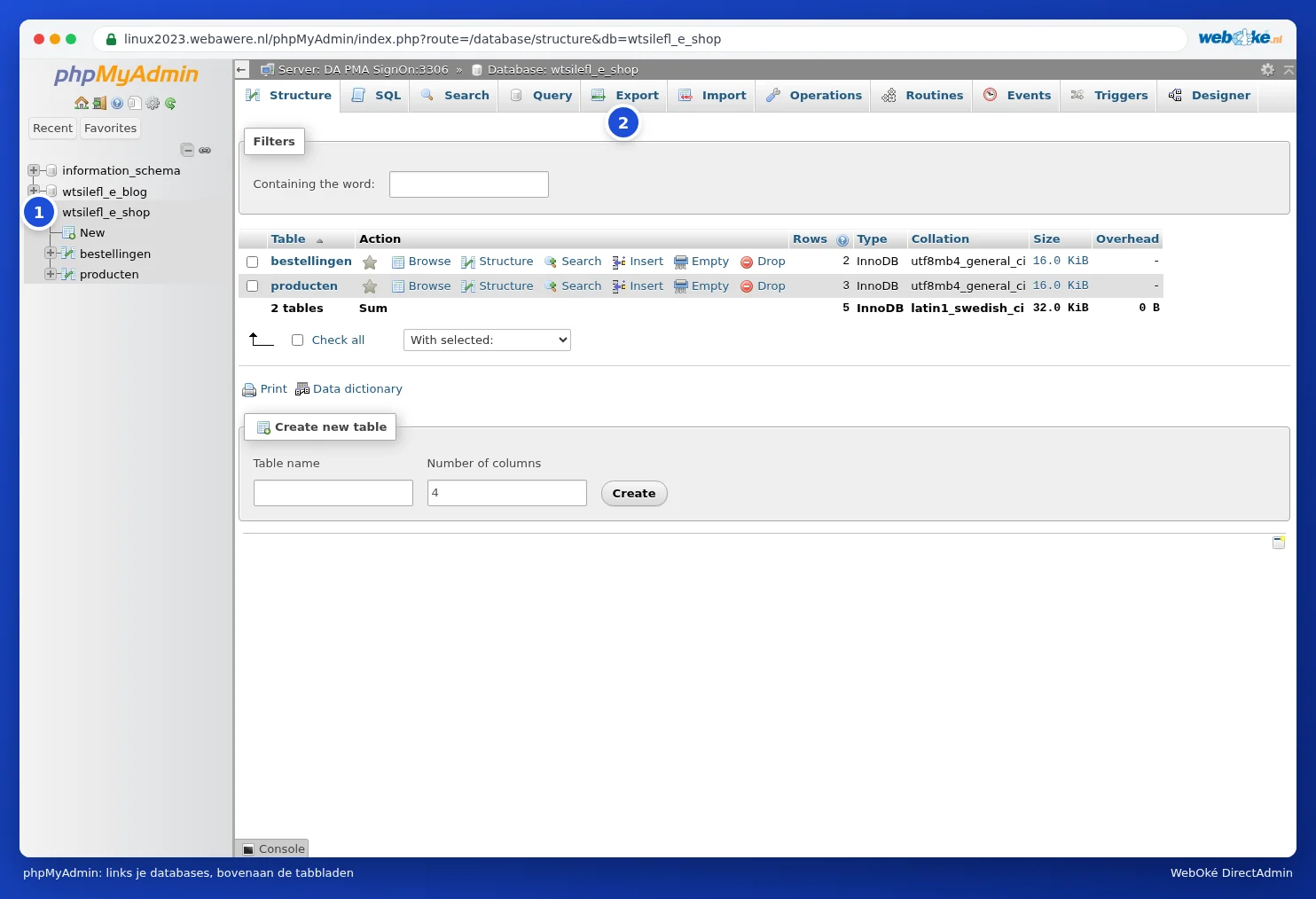
phpMyAdmin is a separate program and is in English for us. That's why we use the English names in this guide, such as Export and Import.
Tip: Does nothing happen when you click phpMyAdmin? Your browser is probably blocking the new tab as a pop-up. Allow pop-ups for the server (a notification usually appears on the right of the address bar) and click again.
Viewing a database
- Click the name of a database on the left. You'll then see all the tables, with the number of rows and the size for each table.
- Click a table to see its contents (the Browse tab). Use Search to search within the table.
- Use the SQL tab to run a command yourself. Only do this if you know what you're doing.
You can read about exporting and importing in Exporting a database and Importing a database, including large files.
Please note: Anything you change or delete in phpMyAdmin happens immediately and without a recycle bin. If you click Drop or Empty for a table, its contents are gone. Make an export first if you're going to change something.
A common example: changing the WordPress address
Can't you get into WordPress anymore after a move or a switch from http to https because the address is wrong? Then change the address in the wp_options table (the wp_ prefix may be different for you):
- Click your database on the left and then the wp_options table.
- Find the siteurl and home rows (usually the first two).
- Double-click the value, type the correct address, for example https://www.yourdomain.com, and press Enter.
Logging in to phpMyAdmin with a password
Do you reach phpMyAdmin a different way and are you asked for a username and password? Those are then the details of a database user (see Database users, privileges and passwords), not your DA details. It's easier to always open phpMyAdmin from DirectAdmin.
Frequently asked questions
Firefox or another browser shows a message about the certificate.
phpMyAdmin runs on the server, for example https://linux2023.webawere.nl/phpMyAdmin/, and has a valid certificate in the name of that server. If you still get a message, open phpMyAdmin again from DirectAdmin instead of an old bookmark, or check whether your virus scanner is intercepting the connection.
I don't see a database in phpMyAdmin.
You only see the databases of the package you're logged in to. If you have multiple hosting packages, open phpMyAdmin from the DirectAdmin of the correct package.