
Chapter 17 · 17.2
Site summary & logs: the error log and the access log
Under Site summary & logs you'll find three things per domain: the visitor statistics, the usage log (all visits) and the error log. The error log is the first place to check if your website shows an error.
The overview
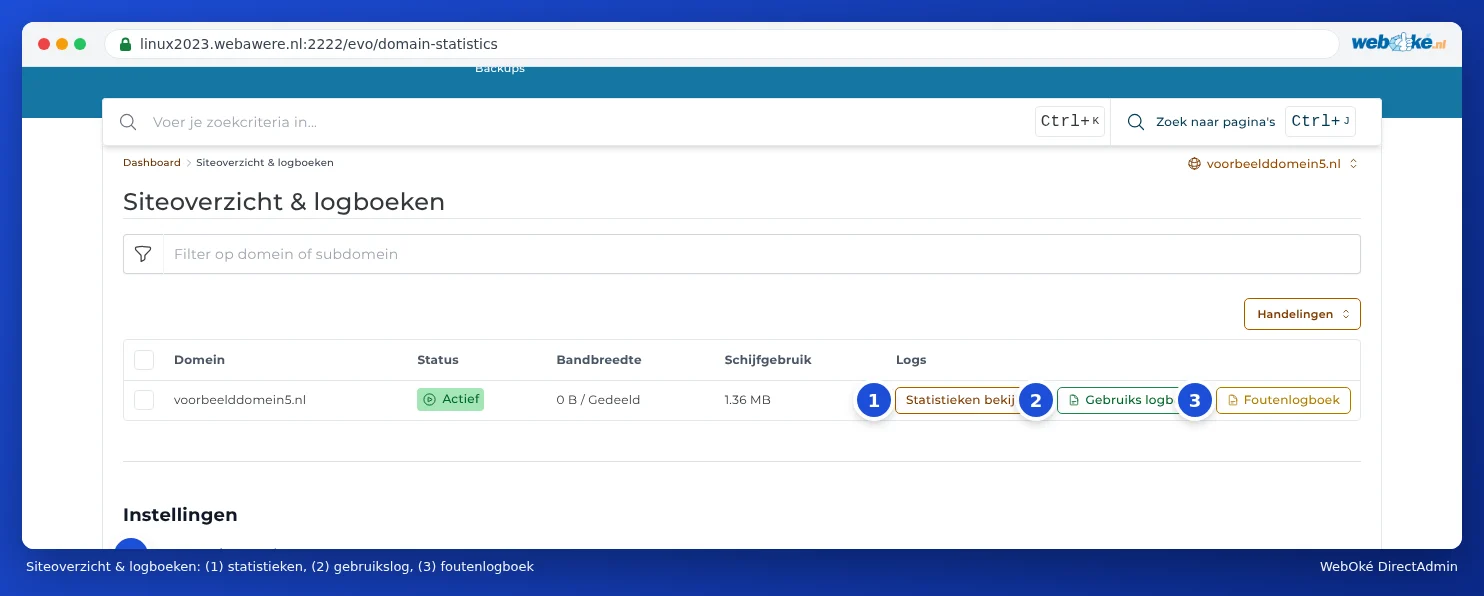
In DirectAdmin, click Site summary & logs under System Info & Files. You'll see your domains with their status, bandwidth and disk usage. Behind each domain are three links:
- View stats (1): the visitor statistics from AWStats.
- Usage log (2): the access log, with every request to your website.
- Error log (3): the errors and warnings from your website, including PHP errors.
Reading the error log
- Click Error log next to your domain.
- You'll see the latest lines of the log. Use Tail and Tail size (lines) to choose how many lines; use Full Log to see everything. RELOAD LOG fetches the newest lines.
- The newest lines are at the bottom. Each line starts with the date and time.

What should you look out for?
| You see | Meaning |
|---|---|
| PHP Fatal error or PHP Parse error | An error in the code that stops the page. Often the cause of a white screen or error 500. The file and line are included (see Fouten na een PHP-upgrade en het foutlog vinden). |
| PHP Warning or PHP Notice | A warning. The page usually still works, but something isn't quite right. Often caused by an outdated plugin. |
| ModSecurity with [id "..."] | The Web Application Firewall blocked a request. The number after id is the rule (see Web Application Firewall). |
| Auto Index is disabled | Someone opened a folder without an index file. Usually harmless. |
| Resource Limit or messages about a limit | Your package hit a limit (see 503 or 'Resource Limit Is Reached': what now?). |
Tip: Looking for an error that just happened? Reload the page with the error in your browser, then click RELOAD LOG. The bottom line is usually the right one.
The usage log
The Usage log lists every request to your website on a single line: the visitor's IP address, the date and time, the requested page, the status code (200 is fine, 404 is not found, 403 is denied, 500 is an error) and the browser or bot.

Handy for seeing whether a bot is flooding your website, whether someone keeps trying to log in to wp-login.php, or which pages return a 404.
Visitor statistics with AWStats
Click View stats next to your domain. You'll see the AWStats statistics: unique visitors, visits, pages, hits and data traffic per month, day and hour, and where your visitors come from. At the top, use Month to choose which month you want to view.
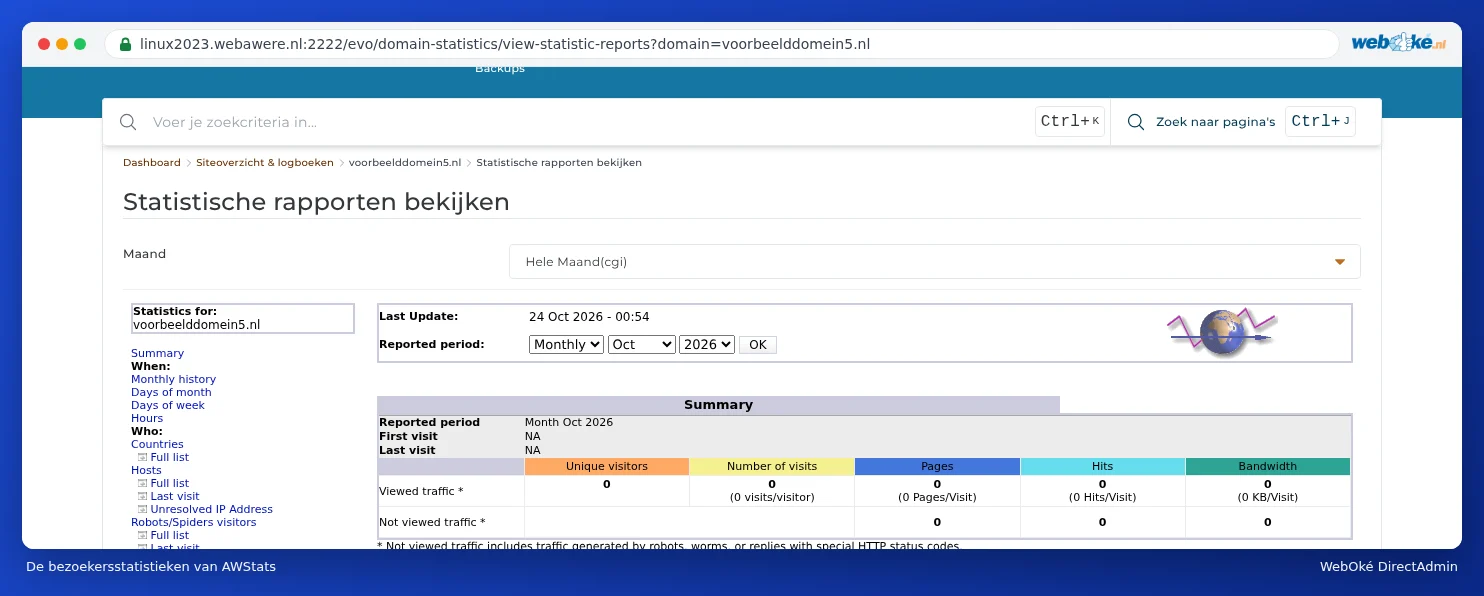
AWStats updates the figures once a day, overnight. So you'll only see today's visits tomorrow. At the bottom of the Site summary & logs overview, under Settings, you'll find the AWStats log analyzer option, which lets you turn the reports on or off.
Please note: AWStats also counts bots and search engines, as far as it recognises them as "Not viewed traffic". If you want to know exactly how visitors behave on your site, also use a dedicated analytics tool on your website.
Old logs
Logs from previous months are kept packed in the folder domains/yourdomain.nl/logs in your package (as .tar.gz). This doesn't contain a live log; you can only see the live log here in DirectAdmin. WordPress PHP errors sometimes also appear in a file called error_log or wp-content/debug.log on your website.